
Use Cline in VS Code with a TeeChat API key
Cline is an open-source coding agent that runs inside Visual Studio Code. You can point it at TeeChat OpenAPI the same way you would WorkBuddy: OpenAI-compatible base URL + a TeeChat API key. You do not need a TeeChat SDK.
Requests are handled inside TeeChat’s confidential computing service: the TLS connection terminates inside measured secure hardware, and user data appears in plaintext only briefly inside that hardware. You can optionally verify OpenAPI. This is the convenient path for IDE agents. TeeChat’s own chat app uses a stronger, app-native confidential path when you need that product experience — the two are complementary, not the same.
TeeChat prep matches setting up WorkBuddy. Use a dedicated key labeled for Cline so you can revoke it without affecting other tools.
Use this chat model id exactly: Qwen/Qwen3.8-27B.
When to use OpenAPI
| Use TeeChat OpenAPI when… | Prefer TeeChat chat when… |
|---|---|
| Your tool only needs a base URL + API key | You want the full TeeChat app experience |
| You integrate agents, IDEs, or RAG stacks | You want conversations in your own folders |
| You want an OpenAI-compatible backend on confidential hardware | You want in-app verification of conversation encryption |
Before you start
- You are signed in to TeeChat (or you will create an account first).
- You can install VS Code on this machine.
- You will create a dedicated TeeChat API key labeled for Cline.
1. Install VS Code
Download and install Visual Studio Code from https://code.visualstudio.com/. Open it once so Extensions can run.
2. Install the Cline extension
In VS Code:
- Open Extensions (
Ctrl+Shift+X/Cmd+Shift+X). - Search for Cline.
- Install Cline by Cline (publisher Cline / marketplace id
saoudrizwan.claude-dev). - Reload the window if VS Code asks you to.
Cline’s own provider notes: OpenAI Compatible.
3. Create an API key in TeeChat
Open TeeChat (desktop or web) → Settings → General → Account → API keys.
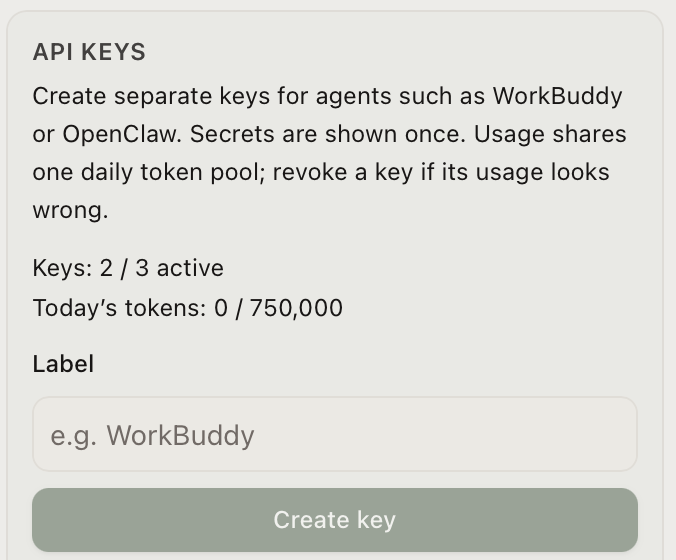
- Enter a label such as
cline. - Click Create key.
- After creation, the full
sk-…is shown once in the settings panel — click Copy, store it somewhere safe, confirm you saved it, then click Done.
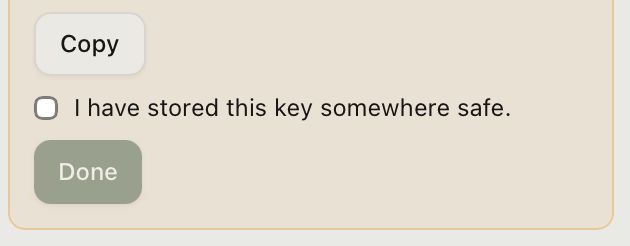
The full key is shown only once. The server does not keep recoverable plaintext; if you did not save it in time, it cannot be read again — revoke it and generate a new one.
Usage from all keys on the same account shares one token pool; using separate keys lets you revoke one key without affecting the others.
4. Open Cline and choose Bring my own API key
Click the Cline icon in the VS Code Activity Bar (sidebar) to open the Cline panel.
On first launch, Cline asks how you want to connect models. Choose Bring my own API key (not Cline’s hosted plan). That opens API settings.
If you already skipped that screen: click the gear in the Cline panel, or the API Provider dropdown under the chat area.
5. OpenAI Compatible — Base URL and key
In API settings:
- Set API Provider to OpenAI Compatible.
- Fill in the fields to match this table:
| Field | Value |
|---|---|
| Base URL | https://openapi.teechat.ai/v1 |
| API Key | The TeeChat sk-… you saved |
| Model ID | Qwen/Qwen3.8-27B |
| Context window (if shown) | 65536 on Standard · 262144 on Pro / Pro+ / Team (engine window; not an SLA) |
| Azure Identity | Leave off |
| Image support / Computer Use | Leave off until you confirm the model supports that path |
Use the base URL …/v1. Cline appends chat (and related) paths for you. The key stays in Cline’s local VS Code settings on this machine.
Save (and Verify if Cline shows that button).
6. Send a short test
In the Cline chat, send a short message (for example, “Reply with the single word pong.”).
A normal reply means the integration works. You can then give Cline agent tasks (read/edit files, run commands).
Practical tips
- One key per tool. Label keys in TeeChat; revoke the matching key if a laptop is lost.
- Quotas. OpenAPI usage draws from your account’s API token pool (limits depend on your plan).
- Context window. Hosted OpenAPI is 32K on Free, 64K on Standard, and has no subscription cap on Pro / Pro+ / Team (engine window 256K, not an SLA). If Cline asks for a context size, type the table number for your plan. Team seats match Pro.
- Model ids can change. Today’s chat model is
Qwen/Qwen3.8-27B; update the Cline field if we publish a new id. Confirm withGET https://openapi.teechat.ai/v1/modelsand your Bearer key.
Security notes
- Verify when you need proof. Security-minded users can verify the OpenAPI edge. Whether you verify or not, TeeChat OpenAPI aims to keep user data encrypted for the duration of inference. The difference from the TeeChat client is only that, with OpenAPI, a program running in a confidential container performs engine authentication and encrypt/decrypt on behalf of the TeeChat client.
- Approve commands by default. Cline does not auto-run terminal commands out of the box—file edits and shell steps usually need your per-action approval. Turn auto-approve on only when you want it, and turn it back off anytime.
- Web Fetch and MCP sit outside the confidential boundary. TeeChat OpenAPI protects conversation content sent to the edge for inference. Cline runs on your machine: Web Fetch talks directly to the target site (URL, some headers, sometimes cookies); MCP sends data to whatever servers you configured (GitHub, browser, databases, and so on). Those paths are not covered by OpenAPI confidential computing—disable or carefully limit Fetch/MCP on sensitive repos, keep per-action approval, and only enable trusted MCP servers.
Also: WorkBuddy and OpenClaw
The same TeeChat OpenAPI backend works in other OpenAI-compatible tools:
Links
- Verify OpenAPI: how-to guide
- TeeChat chat: https://chat.teechat.ai
- Download desktop: https://www.teechat.ai/download
- VS Code: https://code.visualstudio.com/
- Cline extension: Visual Studio Marketplace
- Cline OpenAI Compatible docs: Provider configuration
Revision log
- Chat model id → Qwen/Qwen3.8-27B