
Run OpenClaw on TeeChat OpenAPI — chat and memory embeddings
OpenClaw is a popular open agent shell. You can use TeeChat OpenAPI as its OpenAI-compatible backend for chat and memory embeddings — no TeeChat SDK. Embeddings power OpenClaw’s vector memory search; without them the agent stays much less “smart” about your notes and past context.
Requests are handled inside TeeChat’s confidential computing service: the TLS connection terminates inside measured secure hardware, and user data appears in plaintext only briefly inside that hardware. You can optionally verify OpenAPI. This is the convenient path for agent tools.
TeeChat prep matches setting up WorkBuddy. OpenClaw’s provider fields mean the same thing — omit /v1 on the base URL; the configurator completes the path (see below).
Today’s model ids (subject to change — confirm with the authenticated curl under Discover models below):
| Role | Model id (exact string) |
|---|---|
| Main / agent chat | Qwen/Qwen3.8-27B |
| Memory / embeddings | Qwen/Qwen3-Embedding-0.6B |
Prep: TeeChat account and API key
Same TeeChat-side flow as WorkBuddy. Use a dedicated key labeled for OpenClaw so you can revoke it without affecting other tools.
1. Sign up for TeeChat
Create an account if you do not have one yet — desktop download or web chat.
2. Sign in (web or desktop)
Open TeeChat in the browser or the desktop app and sign in.
3. Create an API key
Open TeeChat → Settings → General → Account → API keys.
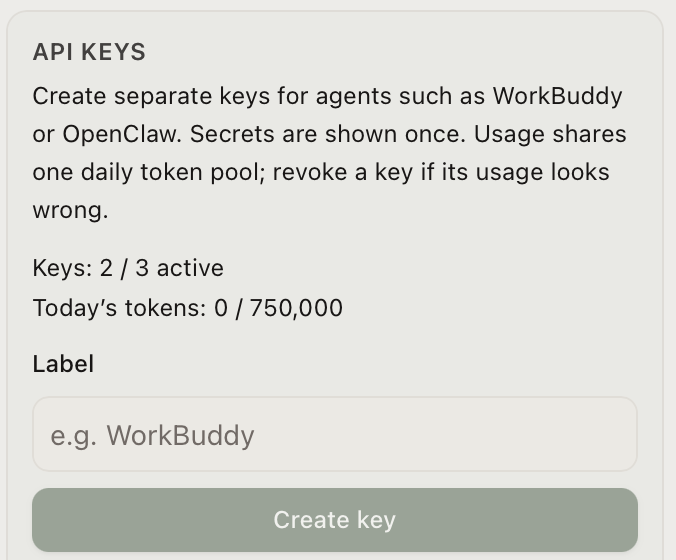
- Enter a label such as
openclaw. - Click Create key.
- After creation, the full
sk-…is shown once in the settings panel — click Copy, store it somewhere safe, confirm you saved it, then click Done.
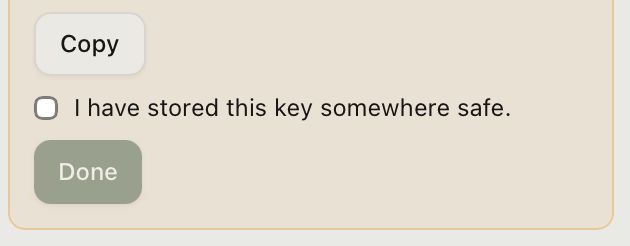
The full key is shown only once. The server does not keep recoverable plaintext; if you did not save it in time, revoke it and generate a new one.
Usage from all keys on the same account shares one token pool; separate keys let you revoke one integration without affecting the others.
4. Discover models (auth required)
GET /v1/models requires an API key. Opening that URL in a browser address bar without Authorization returns 401 — that is expected. Use the terminal:
export TEECHAT_OPENAPI_KEY='sk-…'
curl -sS https://openapi.teechat.ai/v1/models \
  -H "Authorization: Bearer $TEECHAT_OPENAPI_KEY"
Optional: if you have jq, append | jq '.data[].id' to list only model ids. Confirm the completion and embedding ids before configuring OpenClaw.
Before OpenClaw
- Prep steps above are done (you have an
sk-…saved). - OpenClaw is installed and you can run
openclaw(install). - Node meets OpenClaw’s requirement (Node 26 recommended — Node.js).
Configure the chat model for TeeChat OpenAPI
Pick one of these three ways to open the model/provider setup. They collect the same values (next section).
Option A — Initial setup (openclaw onboard)
First-time install, or a full reset:
openclaw onboard --install-daemonChoose QuickStart (recommended) when prompted. When you reach Model/auth provider, continue with the field values below.
Option B — Reconfigure models (openclaw configure)
If OpenClaw is already installed and you only need to change the model/provider:
openclaw configure --section model(openclaw config with no subcommand opens the same interactive wizard family.)
Option C — Control UI dashboard
openclaw gateway status    # Gateway must be running
openclaw dashboard # opens http://127.0.0.1:18789/- Paste the gateway token if the UI asks (from onboarding, or
openclaw gateway auth-token --show). - Open Settings → Agents & Tools → Models (or Model Providers).
- Use Model setup / add or edit a Custom OpenAI-compatible provider, then enter the same values as the CLI wizard.
- For raw edits, System → Config (schema form or Raw JSON) edits
~/.openclaw/openclaw.json.
Values to enter (same for A / B / C)
| Field | Value |
|---|---|
| Model/auth provider | More…, then Custom Provider (Any OpenAI or Anthropic compatible endpoint) |
| API Base URL | https://openapi.teechat.ai — (no /v1 needed; the configurator completes the path) |
| API key | Paste API key now → your TeeChat sk-… |
| Endpoint compatibility | OpenAI-compatible |
| Model ID | Qwen/Qwen3.8-27B (or the current completion id from the Discover models curl) |
About /v1: Enter the site origin for OpenClaw’s custom provider; the configurator completes OpenAI paths. Same idea as WorkBuddy; if a screen already asks for a full …/v1 base, follow that screen.
Filled CLI example (openclaw configure --section model / onboard):
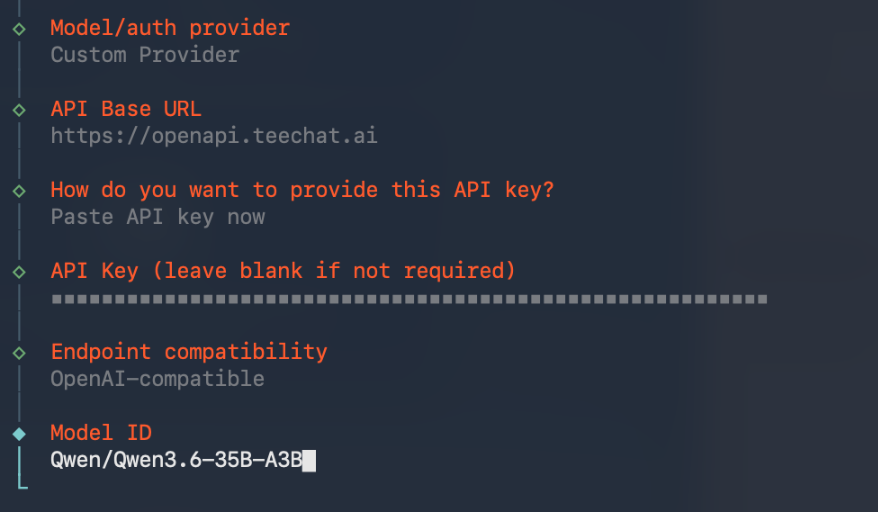
Command-line walkthrough (screenshots)
These steps appear in Option A and Option B. The dashboard (Option C) asks for the same information in forms.
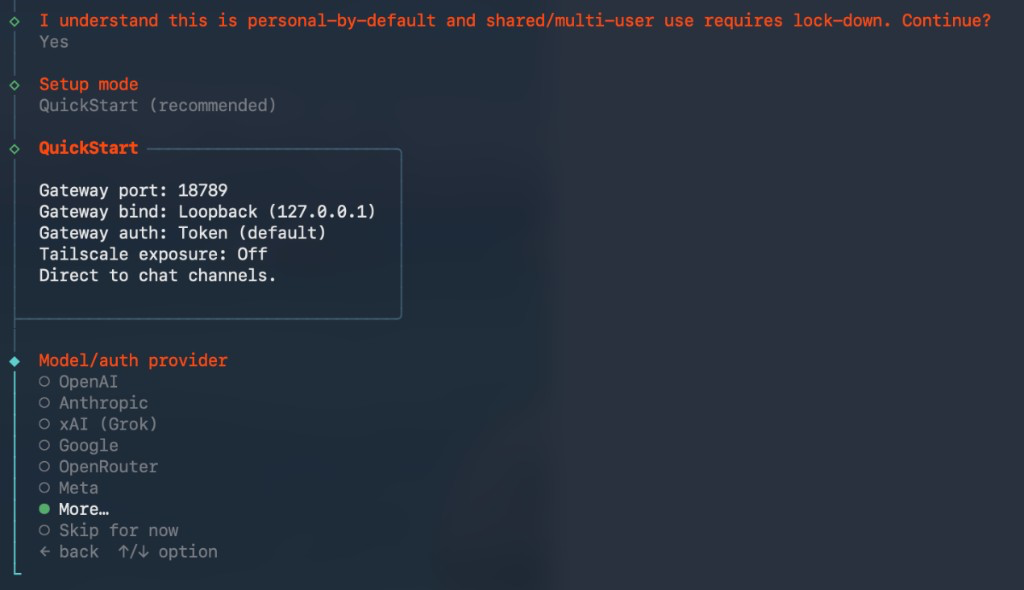
1. More…
Under Model/auth provider, select More… so custom endpoints appear (not only built-in OpenAI / Anthropic rows).
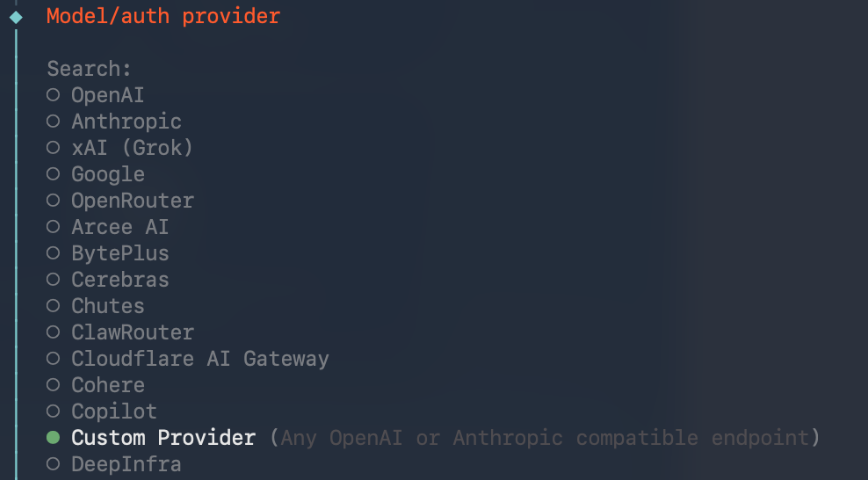
2. Custom Provider
Choose Custom Provider (Any OpenAI or Anthropic compatible endpoint).
3. Paste API key now → OpenAI-compatible → Model ID
- API Base URL:
https://openapi.teechat.ai(no/v1needed; the configurator completes the path). - How do you want to provide this API key? → Paste API key now, then paste the TeeChat key.
- Endpoint compatibility → OpenAI-compatible.
- Model ID →
Qwen/Qwen3.8-27B.
Ids can change — if chat fails after a TeeChat model update, re-run the Discover models curl above and update this field.
Then:
openclaw gateway status
openclaw dashboard
Send a short test message in the Control UI. A normal reply means chat works. Next, wire memory embeddings.
Memory embeddings (required for smart OpenClaw)
OpenClaw’s vector memory search needs an embeddings backend. Point it at the same TeeChat API key and model Qwen/Qwen3-Embedding-0.6B.
1. Optional smoke test
export TEECHAT_OPENAPI_KEY='sk-…'
curl -sS https://openapi.teechat.ai/v1/embeddings \
  -H "Authorization: Bearer $TEECHAT_OPENAPI_KEY" \
  -H "Content-Type: application/json" \
  -d '{"model":"Qwen/Qwen3-Embedding-0.6B","input":"OpenClaw memory smoke"}'
Expect 200. If it fails, check the key/quota before configuring OpenClaw.
2. Configure memory search
Embeddings are still configured. On current released OpenClaw (e.g. npm 2026.7.1-2):
- Top-level
memoryonly selects the engine:backend+citations(do not putsearchhere — that yieldsmemory: Invalid input). - Embedding provider / model / remote live under
agents.defaults.memorySearch(Config form path, or conceptual memory config; Settings → Memory does not expose these fields).
Open Config → Raw JSON (or edit ~/.openclaw/openclaw.json) and merge (keep doctor’s memory.backend):
{
  "memory": {
    "backend": "builtin",
    "citations": "auto"
  },
  "agents": {
    "defaults": {
      "memorySearch": {
        "provider": "openai-compatible",
        "model": "Qwen/Qwen3-Embedding-0.6B",
        "remote": {
          "baseUrl": "https://openapi.teechat.ai/v1",
          "apiKey": "sk-…"
        }
      }
    }
  }
}
Or via CLI:
openclaw config set agents.defaults.memorySearch.provider openai-compatible
openclaw config set agents.defaults.memorySearch.model 'Qwen/Qwen3-Embedding-0.6B'
openclaw config set agents.defaults.memorySearch.remote.baseUrl 'https://openapi.teechat.ai/v1'
openclaw config set agents.defaults.memorySearch.remote.apiKey 'sk-…'(remote.baseUrl must include /v1. Then openclaw config validate and rebuild the index.)
| Surface | Base URL |
|---|---|
| Chat Custom Provider | https://openapi.teechat.ai (no /v1 needed; configurator completes the path) |
Memory embeddings agents.defaults.memorySearch.remote.baseUrl | https://openapi.teechat.ai/v1 (with /v1) |
| WorkBuddy custom model URL | https://openapi.teechat.ai/v1 |
3. Rebuild the index
openclaw gateway restart   # if config was edited on disk
openclaw memory index --force
openclaw memory status
memory status should show the embeddings provider healthy (not keyword-only / disabled).
Practical tips
- One key per tool. Label keys in TeeChat; revoke the matching key if a laptop is lost.
- Quotas. Chat and embeddings draw from the same account token pool.
- Three doors, one form.
onboard,configure --section model, and the dashboard all need the same custom-provider values. - Verify when you need proof. Verify OpenAPI is optional for everyday OpenClaw use.
Checklist
- TeeChat account + signed in
- Dedicated API key labeled
openclaw,sk-…saved - Authenticated curl
GET /v1/modelslists models (bare browser URL → 401 without a key) - Opened model setup via onboard or
configure --section modelor dashboard - More… → Custom Provider → base URL (no
/v1needed; configurator completes the path) → paste key → OpenAI-compatible →Qwen/Qwen3.8-27B - Short chat test succeeds
- (Optional) Curl embeddings 200 for
Qwen/Qwen3-Embedding-0.6B - Memory search:
agents.defaults.memorySearch→ TeeChat/v1+ same key;memory index --forcehealthy
Links
- WorkBuddy on the same OpenAPI: connect WorkBuddy
- Verify OpenAPI: how-to guide
- OpenClaw docs: getting started · configure
- TeeChat chat: https://chat.teechat.ai
- Download desktop: https://www.teechat.ai/download
Revision log
- Chat model id → Qwen/Qwen3.8-27B
- Add OpenClaw × TeeChat hero art after Prep.